
How to add your first product in ADPOS
Give it a name, a price and the stock you already have on the shelf, and it is ready to sell. One screen, about a minute.

Your till can only sell what it knows about, so adding your first product is the next step after creating your account. It all happens on one screen: what the product is called, what it sells for and how many you already have.
As an example we will add a bag of rice: Samba Rice 5kg, sold for Rs. 1,450, with 20 bags already on the shelf.
Open the Add Product page
In the menu on the left, open Inventory, then Products, then press Add Product. On a phone, tap Inventory in the bar at the bottom of the screen.
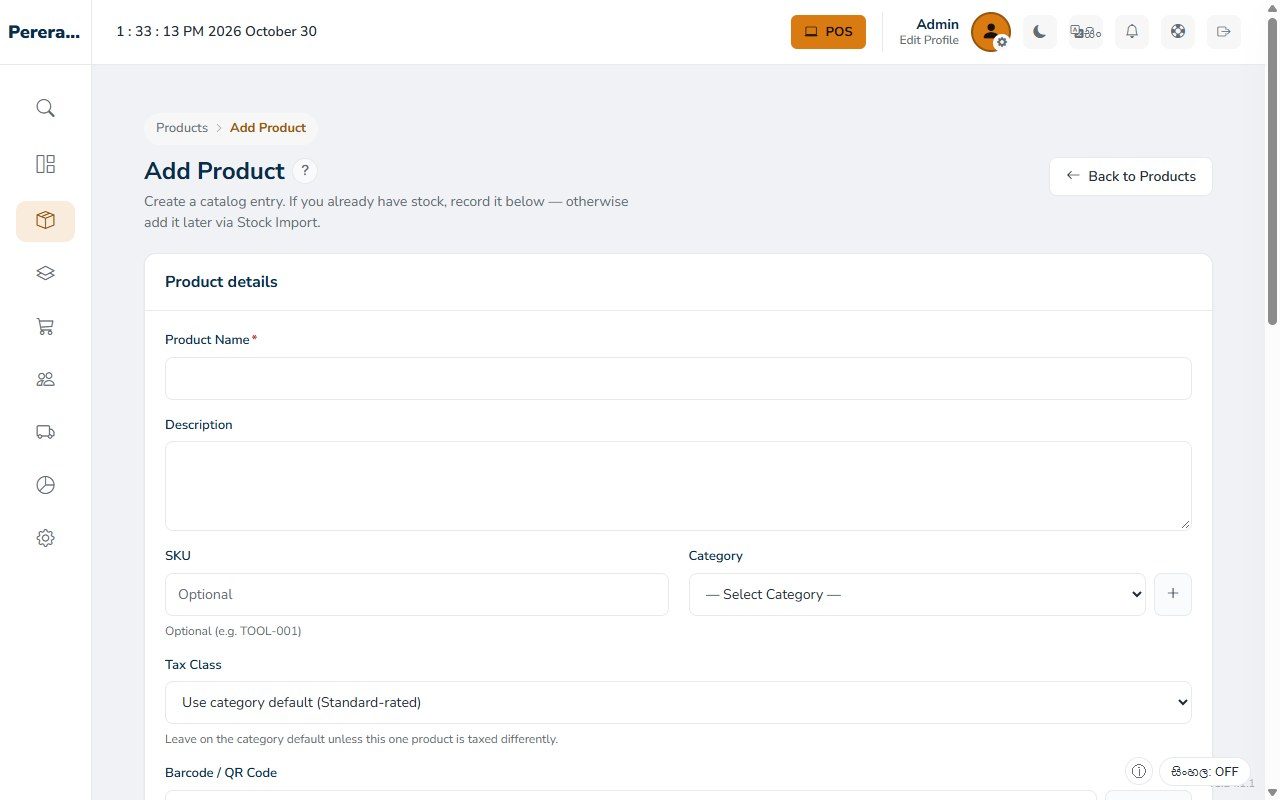
Fill in the product details
- Product Name: the name you and your cashiers will search for. Put the size in the name (5kg, 400g, 1L) so the right one is easy to pick. Sinhala names work too, see the tip below.
- Description: optional.
- SKU: your own product code. Leave it empty and ADPOS makes one for you (this product got RIC-SAM-001).
- Category: the shelf the product belongs to. The + button next to it adds a new category without leaving the page.
- Barcode / QR Code: type the number printed under the barcode, or press Scan and hold the barcode up to your device’s camera. With a barcode, the till finds the product with one scan.
- Product Type: Fixed Product for things sold by the piece, such as packets and bottles. Loose Product for things sold by weight or volume.
- Price: the selling price, in rupees.
- Custom Low Stock Threshold: optional. When stock falls to this number, the product appears under Low Stock on your dashboard. Leave it empty to use the shop’s default.
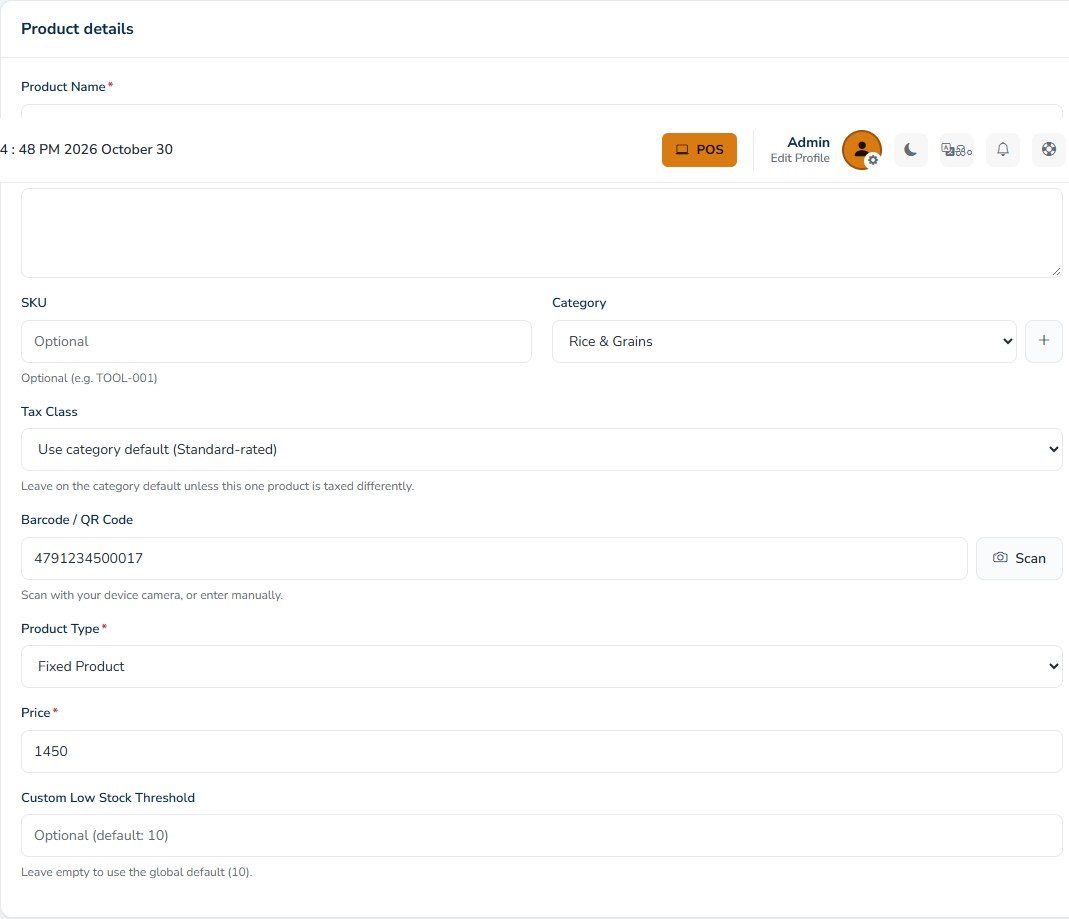
If you see a Tax Class field, leave it on the category’s default unless this one product is taxed differently.
Adding a category on the spot
Press the + next to Category, type a name such as Rice & Grains and press Create Category. The new category is picked for your product straight away.
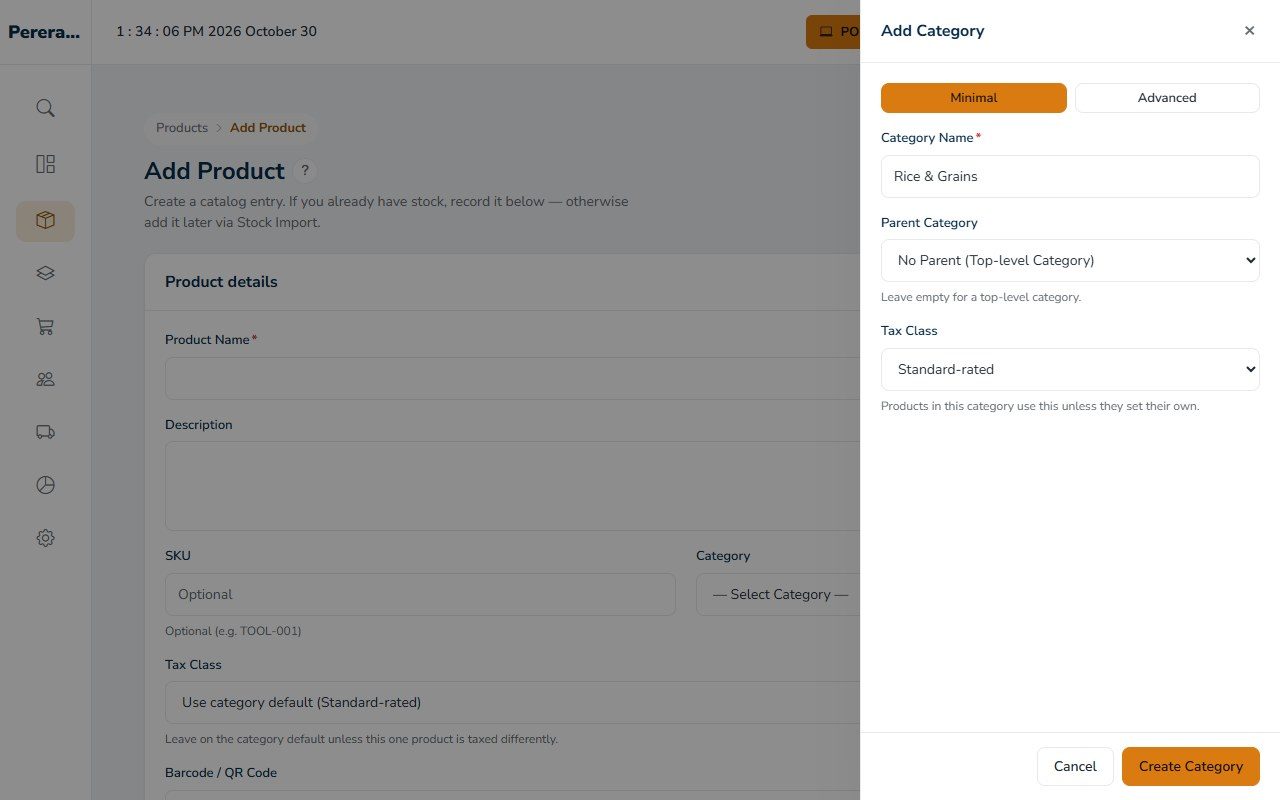
Record the stock you already have
You probably already have this product on your shelf. In Opening Stock, type how many you have in Opening Quantity and what you paid for each one in Cost. ADPOS records it as your starting stock and works out your margin as you type. Here, buying at Rs. 1,300 and selling at Rs. 1,450 is a 10.3% margin.
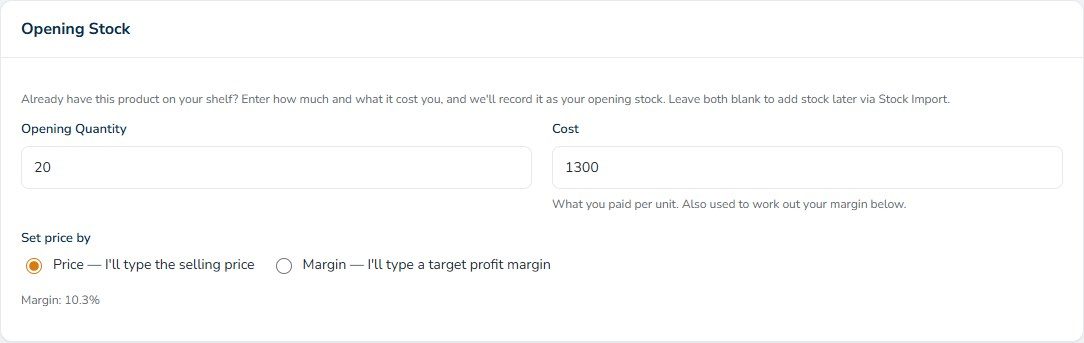
Prefer to think in margins? Choose Margin under Set price by, type the margin you want, and ADPOS works out the selling price from the cost.
Save your first product and check it
Press Create Product at the bottom of the page. ADPOS confirms it with “Product created successfully with 20 in stock” and opens your products list, showing the SKU, category, price and stock.
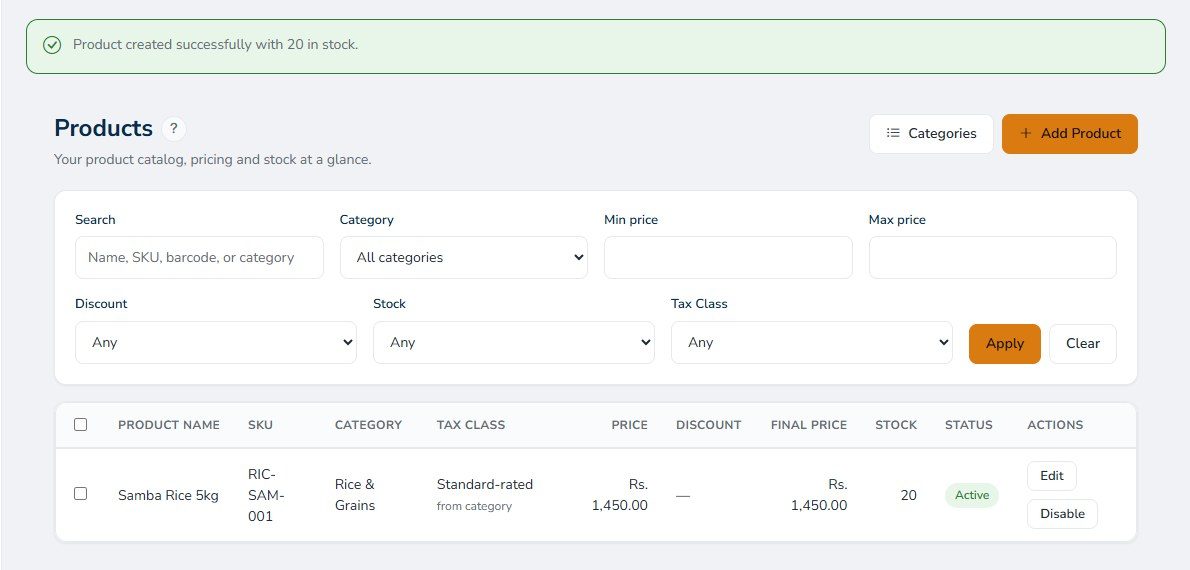
Made a mistake? Press Edit on the product’s row to change it.
Adding products from your phone
The same page works on a phone. The fields stack one under another, and the bar at the bottom takes you back to the dashboard or the till.
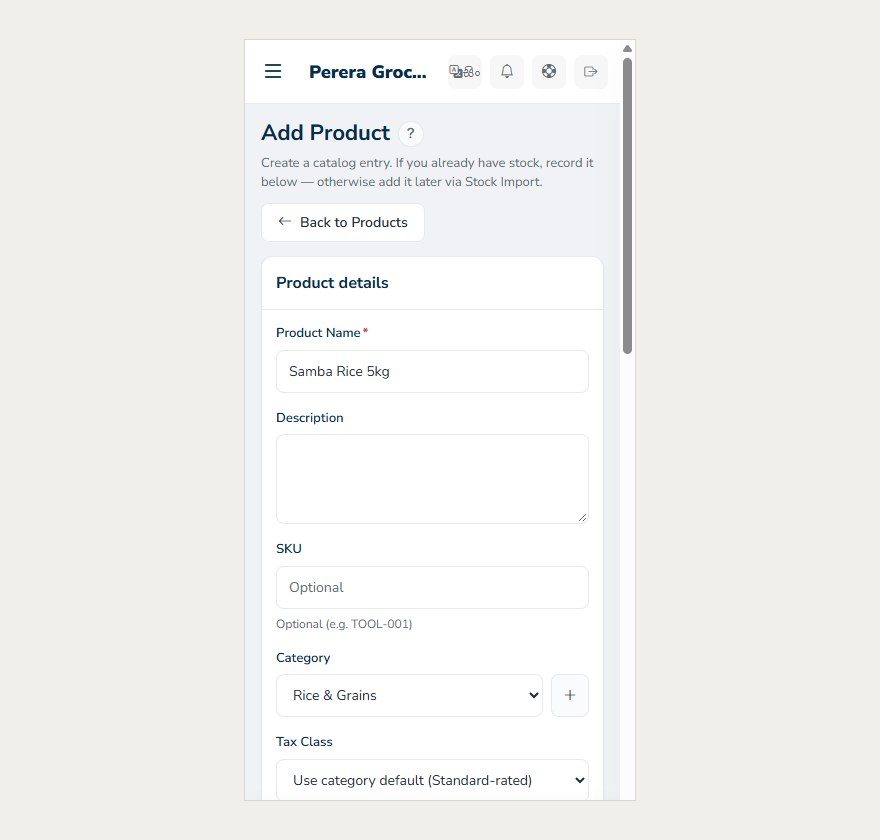
Tips for the rest of your catalogue
- Start with your best sellers. They are the products your till needs first.
- Give every product with a barcode its barcode. A scan is faster and more accurate than searching.
- Use the same pattern for every name, such as brand, product, size. It makes searching at the counter quicker.
What next?
Your product is in the catalogue. Next, learn how to import stock in ADPOS for the deliveries that come after today, then make your first sale.
Keep reading

How to create your ADPOS account, step by step
All you need is a mobile number, an email address you can open now and a few minutes. Here is every screen, from the sign-up form to your first look at the dashboard.

How to import stock in ADPOS
When a delivery arrives, record it once: type a few lines by hand or upload a spreadsheet. ADPOS adds it to your stock and remembers what you paid and what you still owe.

How to make your first sale with ADPOS
Open the till, add the products, take the money and hand over a receipt. Here is your first sale, from counting the drawer to seeing it on the dashboard.