
How to make your first sale with ADPOS
Open the till, add the products, take the money and hand over a receipt. Here is your first sale, from counting the drawer to seeing it on the dashboard.

With your account open, your first product added and your stock recorded, you are ready for the best part: your first sale. This guide follows one sale all the way through: two bags of rice, paid in cash.
Open the till
Press POS at the top of any screen. On a phone, tap POS in the bar at the bottom.
Count the cash in your drawer
Before the first sale of the day, ADPOS asks what is already in the cash drawer. Use the + and − buttons (or type a number) to count each note and coin. ADPOS adds them up as Opening Cash. Then press Open Register.
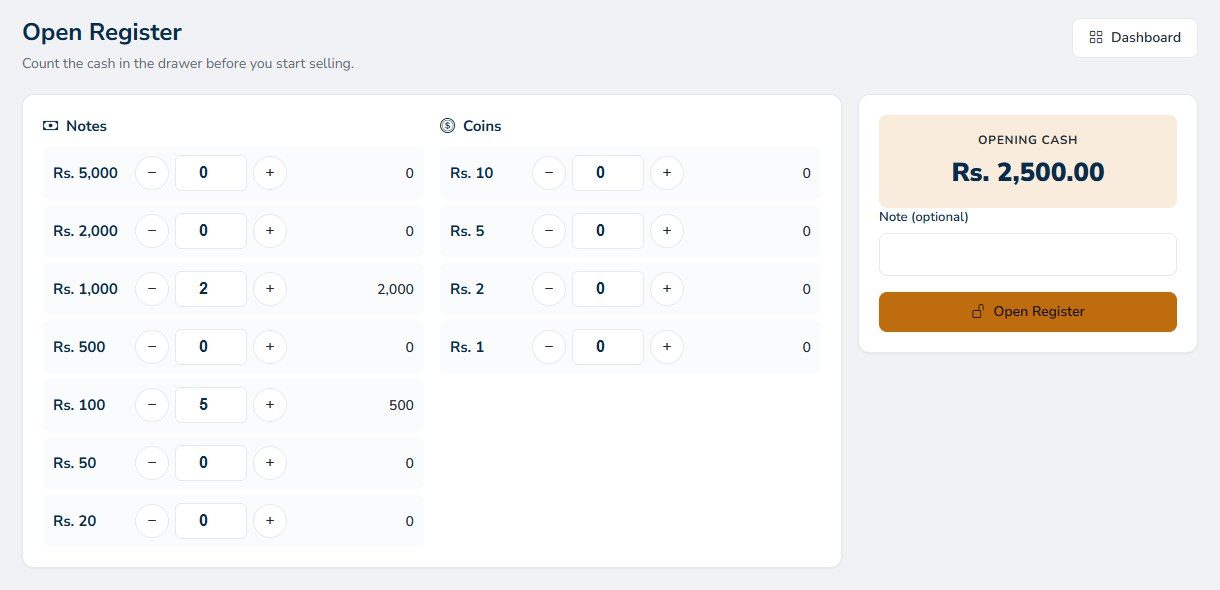
This is how ADPOS can tell you at closing time exactly how much cash should be in the drawer. If your shop does not use the cash register, this step is skipped and you go straight to the till.
Add products to the bill
There are two ways to add a product:
- Scan its barcode with a barcode scanner. The Scan or Enter Code box is ready for it, and you can also type the code there.
- Search for it: type part of the name in Search Products and pick it from the list. Sinhala names can be searched too.
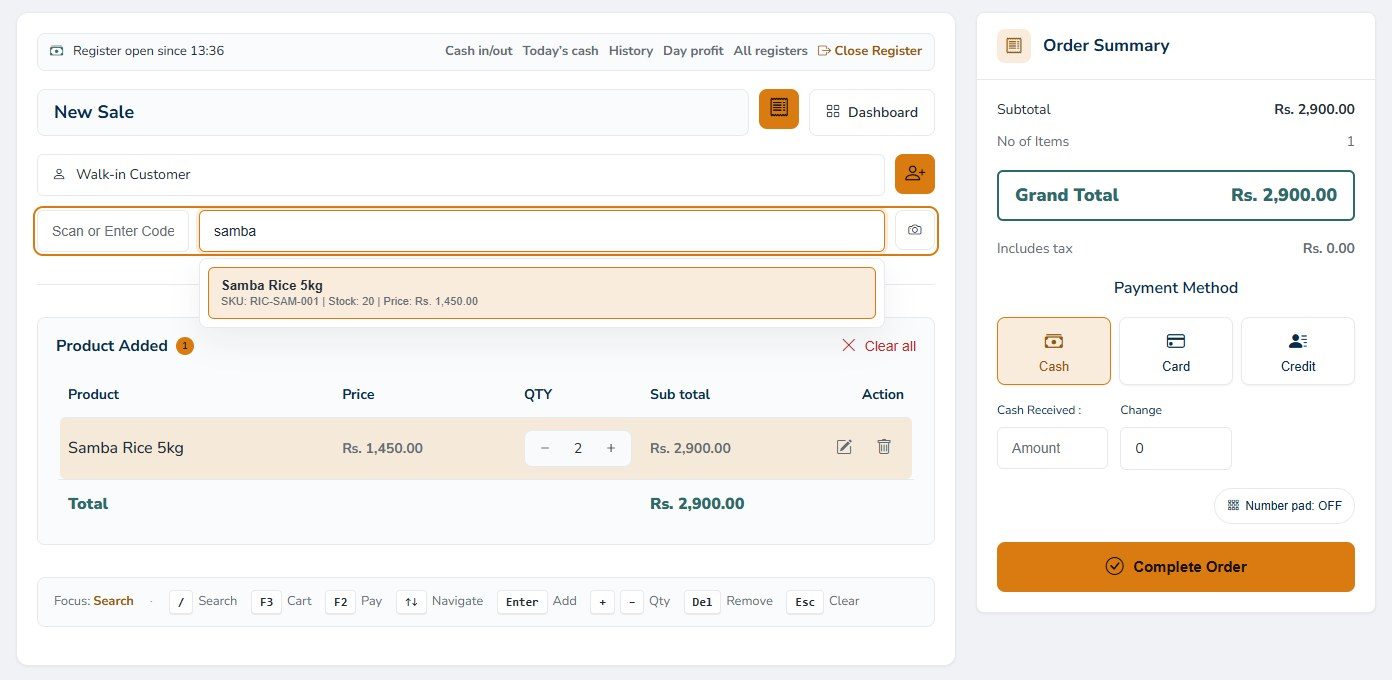
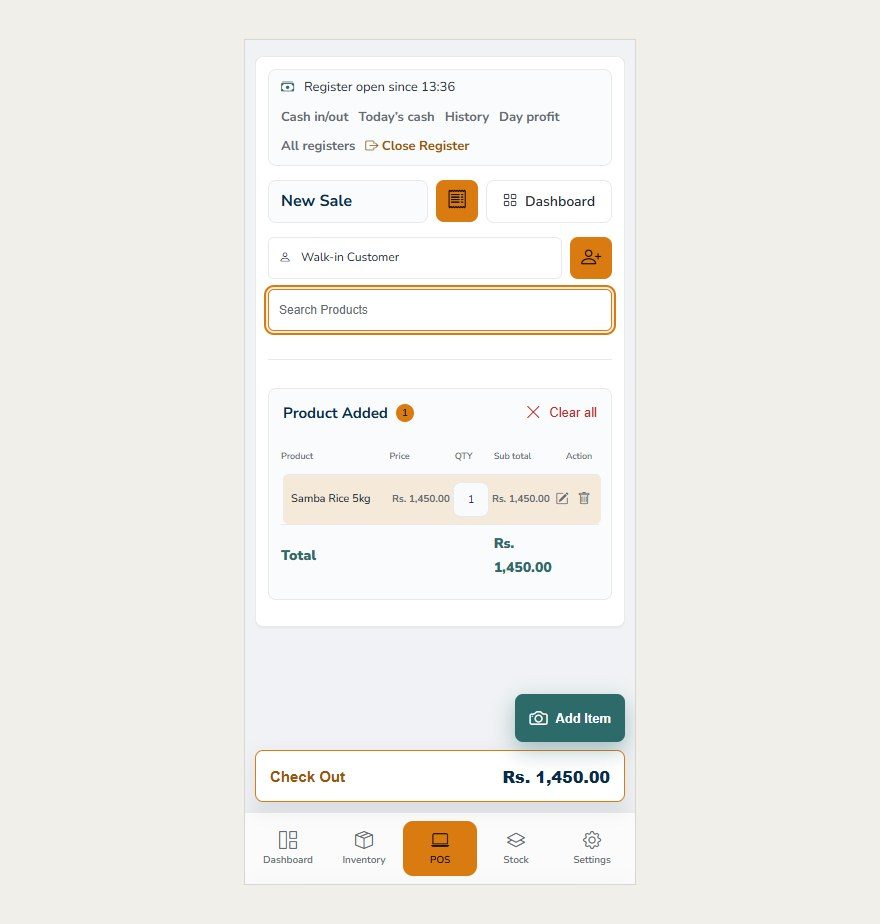
The product goes into Product Added. Use + and − to change the quantity. The pencil changes the price for this sale only, and the bin removes the line. The total updates as you go.
Take the payment
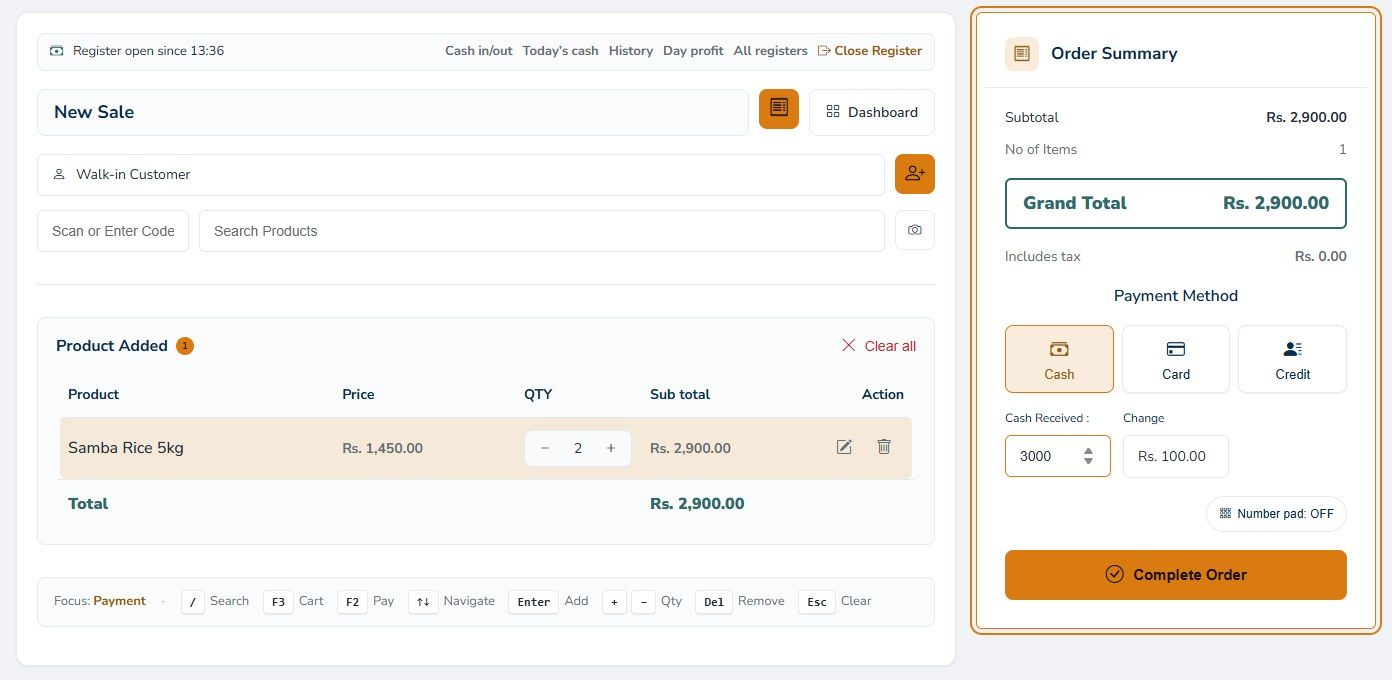
The Order Summary on the right shows the grand total. Choose how the customer pays:
- Cash: type the amount the customer hands you in Cash Received, and ADPOS shows the change to give back.
- Card: for a card payment on your own card machine.
- Credit: the customer pays later. Attach the customer first with the button next to Walk-in Customer, so ADPOS knows who owes the money.
Here the customer hands over Rs. 3,000 for a Rs. 2,900 bill, so the change is Rs. 100. Press Complete Order.
Print the receipt
The sale is saved and the receipt appears, with your shop’s name, the bill number, the items and the total. Press Print Receipt to print it, or New Sale to serve the next customer.
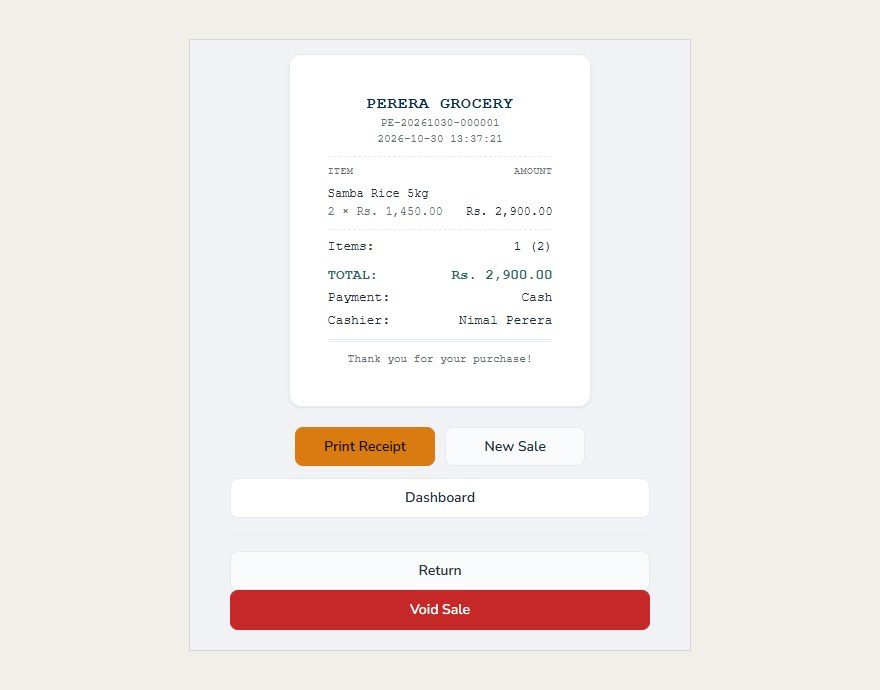
The same screen has Return, for when a customer brings something back, and Void Sale, to cancel a sale made by mistake.
Selling from a phone
On a phone the till fits the screen. Add products the same way, or tap Add Item to scan a barcode with the camera, then press Check Out at the bottom to take the payment.
Faster with a keyboard
At a counter with a keyboard, these keys save a lot of clicking:
| Key | What it does |
|---|---|
| / | Go to product search |
| Enter | Add the highlighted product |
| + and − | Change the quantity |
| Del | Remove the line |
| F2 | Go to payment |
| F3 | Go to the cart |
| Esc | Clear the search box |
See your first sale on the dashboard
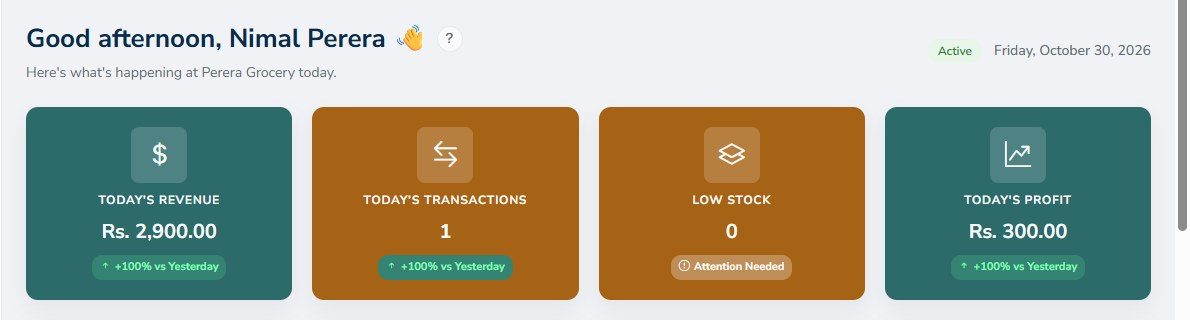
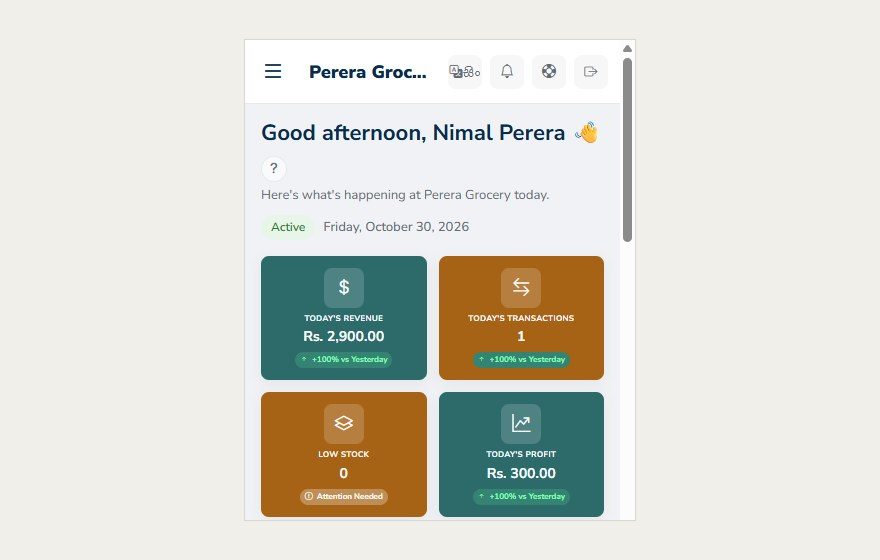
Go back to the dashboard and your first sale is already there: today’s revenue, transactions and profit.
At the end of the day
When you close the shop, press Close Register at the top of the till and count the drawer again. ADPOS compares your count with what the day’s cash sales say should be there.
That is the whole loop: open an account, add your products, import your stock, sell. Each new product you add is ready at the till the moment you save it, and each delivery you import is ready to sell the moment it is imported.
Keep reading

How to create your ADPOS account, step by step
All you need is a mobile number, an email address you can open now and a few minutes. Here is every screen, from the sign-up form to your first look at the dashboard.
How to add your first product in ADPOS
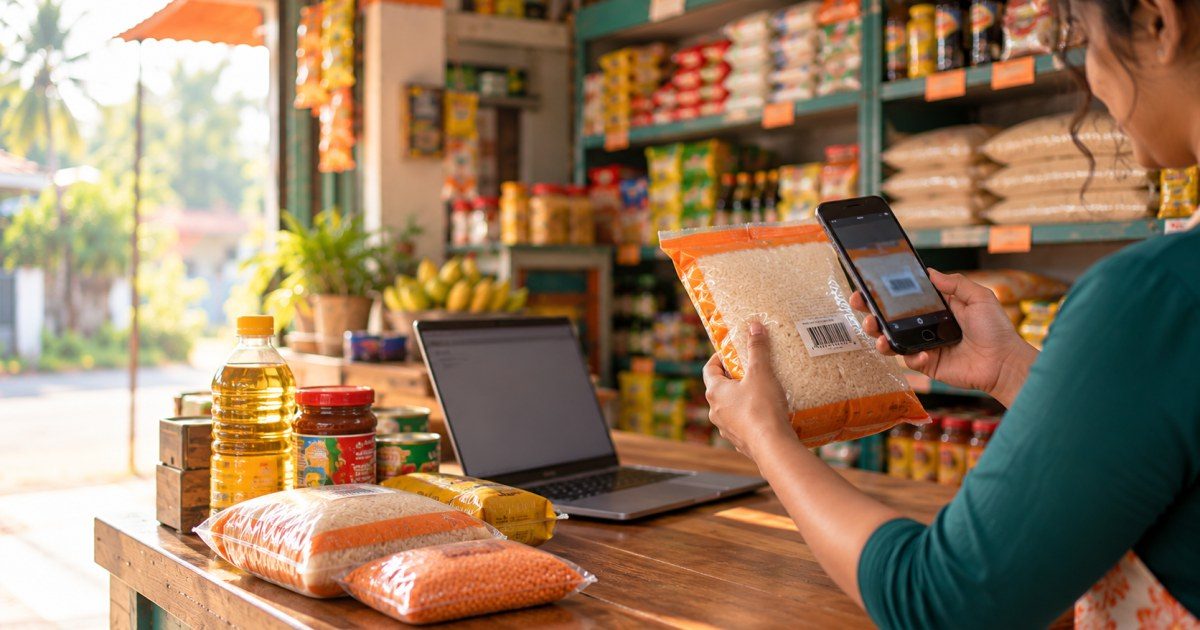
Give it a name, a price and the stock you already have on the shelf, and it is ready to sell. One screen, about a minute.

How to import stock in ADPOS
When a delivery arrives, record it once: type a few lines by hand or upload a spreadsheet. ADPOS adds it to your stock and remembers what you paid and what you still owe.