
How to import stock in ADPOS
When a delivery arrives, record it once: type a few lines by hand or upload a spreadsheet. ADPOS adds it to your stock and remembers what you paid and what you still owe.

Adding a product tells ADPOS what you sell. To import stock tells it how many you have. Opening stock, from adding your first product, covers what is already on your shelf on day one; every delivery after that is a stock import. This guide records two deliveries for an example shop: 10 more bags of rice from a supplier, typed by hand, and a spreadsheet of dhal and sugar.
It is the third of four: after creating your account and adding your first product, and before your first sale.
Why every delivery is recorded separately
You may buy the same rice at Rs. 1,300 this month and Rs. 1,350 next month. Each import becomes its own batch with its own cost, and the till sells the oldest batch first (first in, first out). That is how your profit stays right when prices change.
Open Import Stock
In the menu on the left, open Stock, then Import Stock. On a phone, tap Stock in the bar at the bottom of the screen.
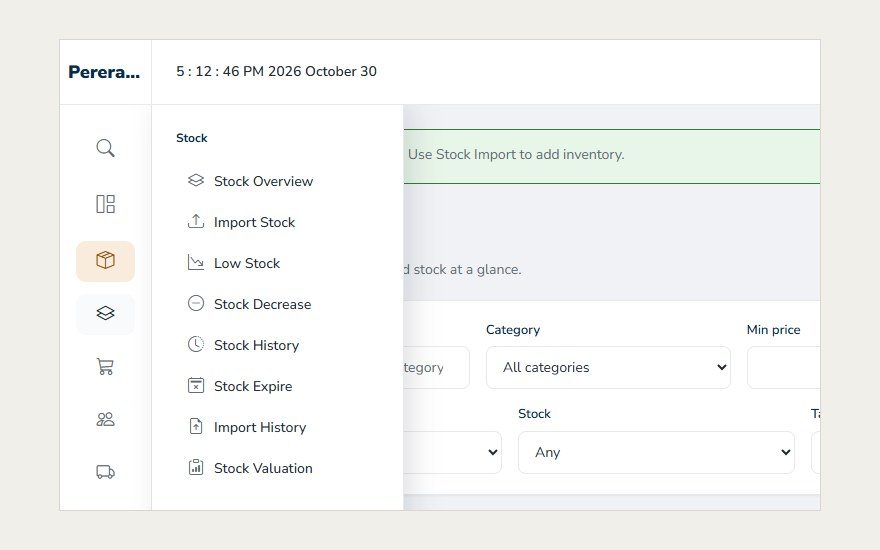
The page has two ways in: Upload Stock Import File for a large delivery, and Manual Stock Entry for a few lines. Both add stock in exactly the same way.
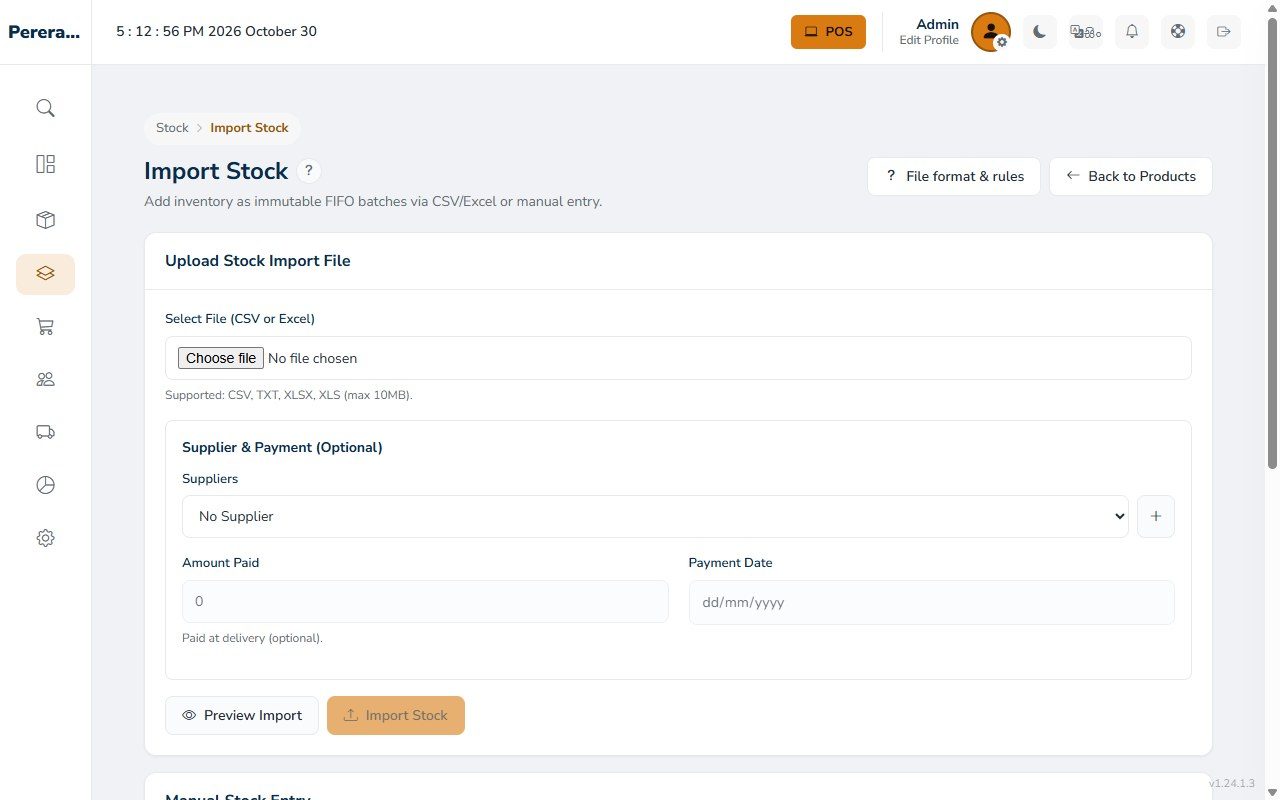
Way 1: type a delivery by hand
For a small delivery, use Manual Stock Entry at the bottom of the page. Each row is one product:
- Product: type part of the name or the SKU and pick it from the list, or press the camera button to scan its barcode.
- Quantity: how many arrived.
- Cost Price: what you paid for one.
- Purchased: the delivery date. It starts as today.
- Expiry: optional. Fill it in for goods with a use-by date, so ADPOS can show you what is about to expire.
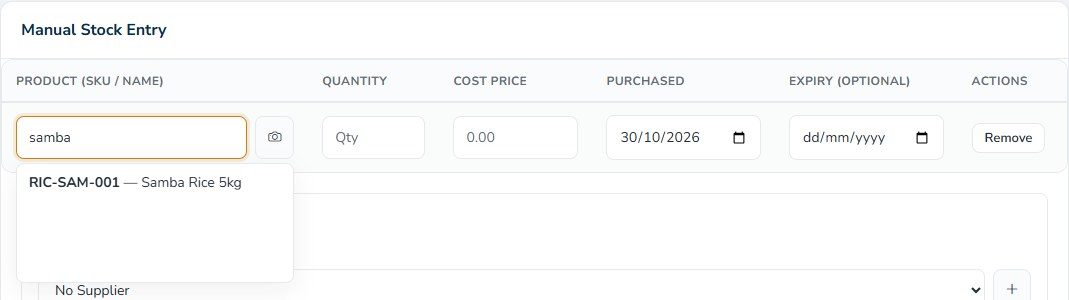
Press Add Row for the next product in the same delivery.
Supplier and payment (optional)
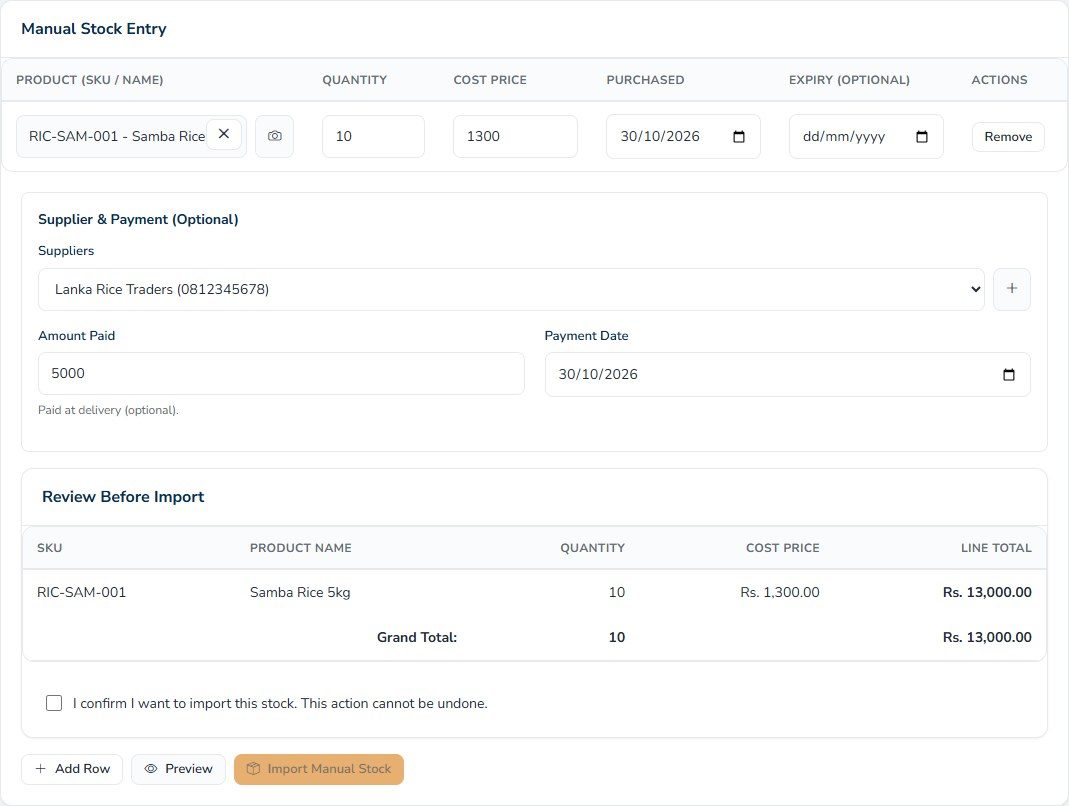
If the goods came from a supplier, choose them under Suppliers; the + next to the list adds a new supplier without leaving the page. Type what you paid on delivery in Amount Paid. Anything unpaid becomes what you owe that supplier, and you can record the rest when you pay it.
Here the shop received 10 bags of Samba Rice at Rs. 1,300 from Lanka Rice Traders and paid Rs. 5,000 on the spot, so Rs. 8,000 is still owed.
Preview, tick and import
Press Preview. ADPOS lists every line with its total under Review Before Import. If it is right, tick I confirm I want to import this stock and press Import Manual Stock.
Sometimes ADPOS shows a warning first: a cost higher than the selling price, an unusually large quantity, or a date in the future. A warning does not stop the import. It asks you to look twice.
Way 2: upload a spreadsheet
For a big delivery, or when you have many products to stock at once, a file is faster. Make a spreadsheet in Excel or Google Sheets with these columns in the first row, and save it as CSV or Excel (.xlsx):
| Column | Required | What goes in it |
|---|---|---|
| sku | Yes | The product’s SKU, exactly as on the Products page |
| quantity | Yes | How many arrived |
| cost_price | Yes | What you paid for one |
| purchased_at | No | The delivery date, as YYYY-MM-DD. Empty means today |
| expiry_date | No | The use-by date, as YYYY-MM-DD |
For example, 24 packs of dhal and 30 packs of sugar:
sku,quantity,cost_price,purchased_at,expiry_date
RIC-MYS-001,24,360,2026-10-30,2027-04-30
RIC-WHI-001,30,270,2026-10-30,Under Upload Stock Import File, press Choose file and pick your file, add the supplier and payment if you like, and press Preview Import. ADPOS reads the file and shows the totals. Tick the confirmation and press Import Stock.
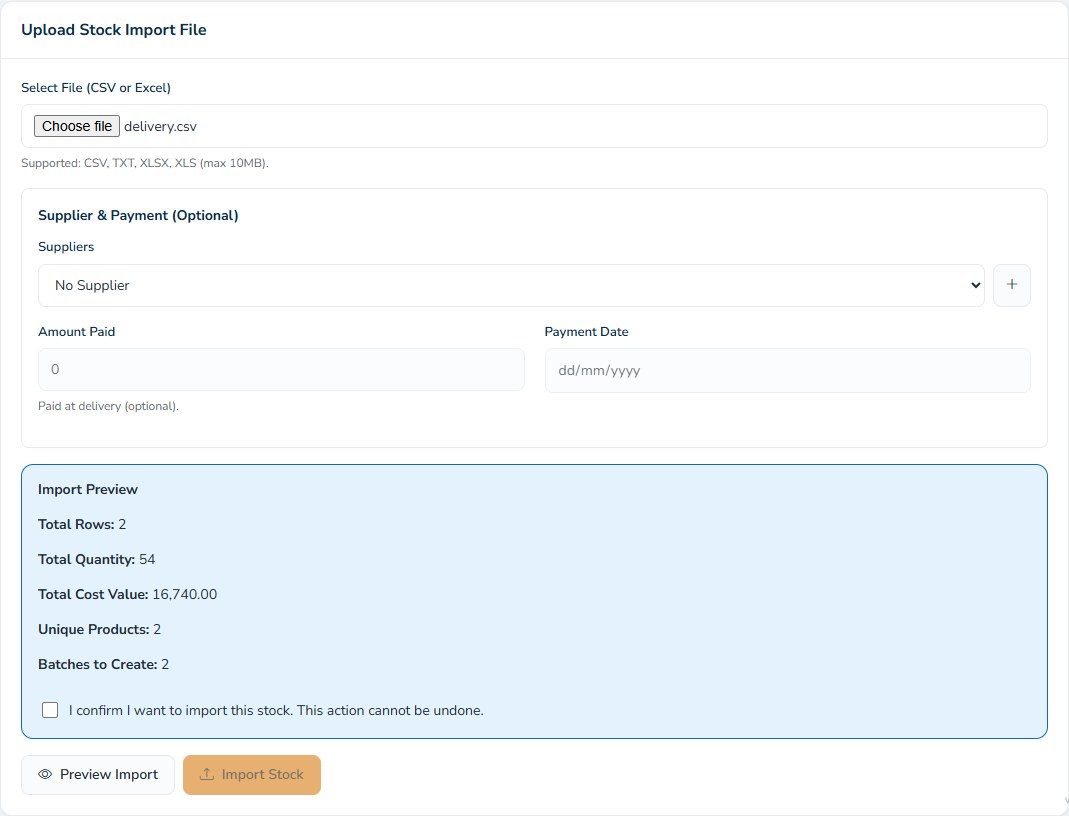
A file is imported all together or not at all: if a line is wrong, nothing is added and ADPOS shows what to fix. The File format & rules button at the top of the page has the full rules.
Check what you imported
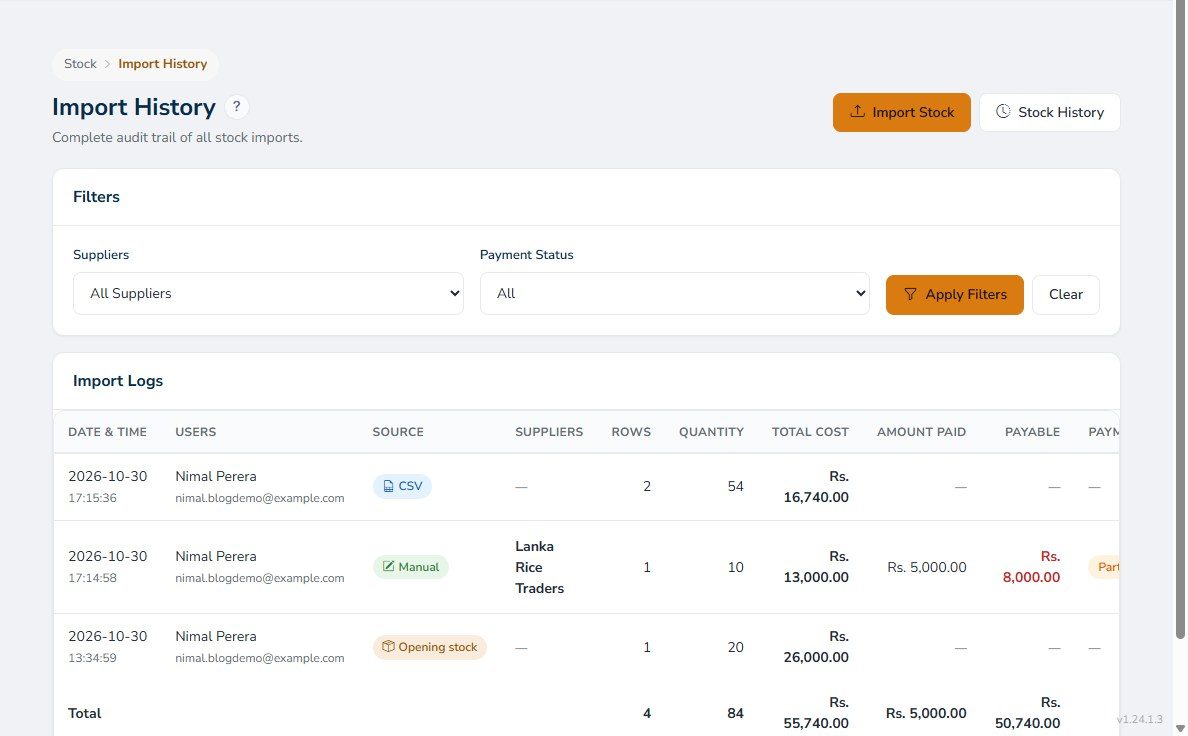
Stock → Import History lists every import: when, who, how (CSV, Manual or Opening stock), the supplier, the total cost, what you paid and what you still owe. Press Record on a row to record a later payment to the supplier.
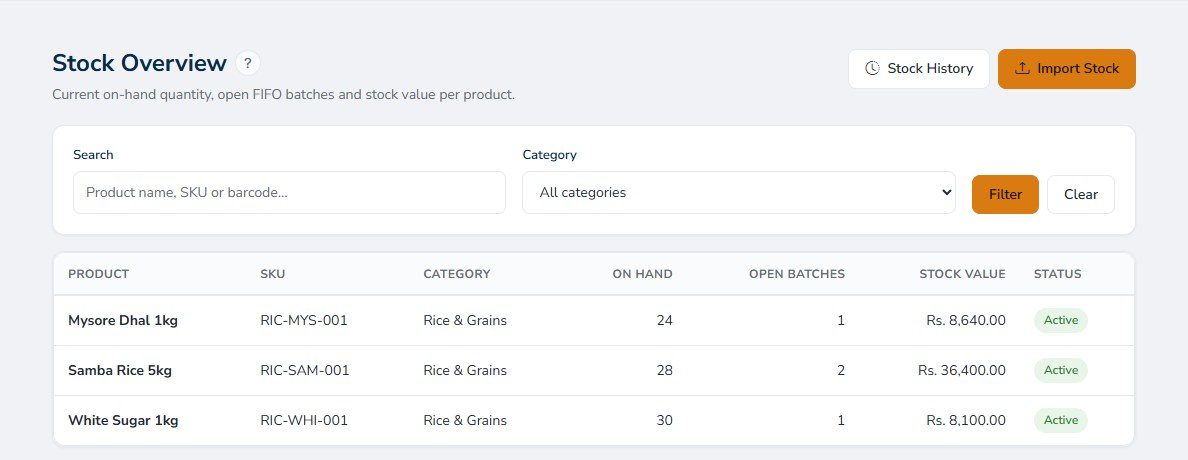
Stock → Stock Overview shows what you have now: the quantity on hand, how many batches are open and what the stock is worth at cost.
Importing from your phone
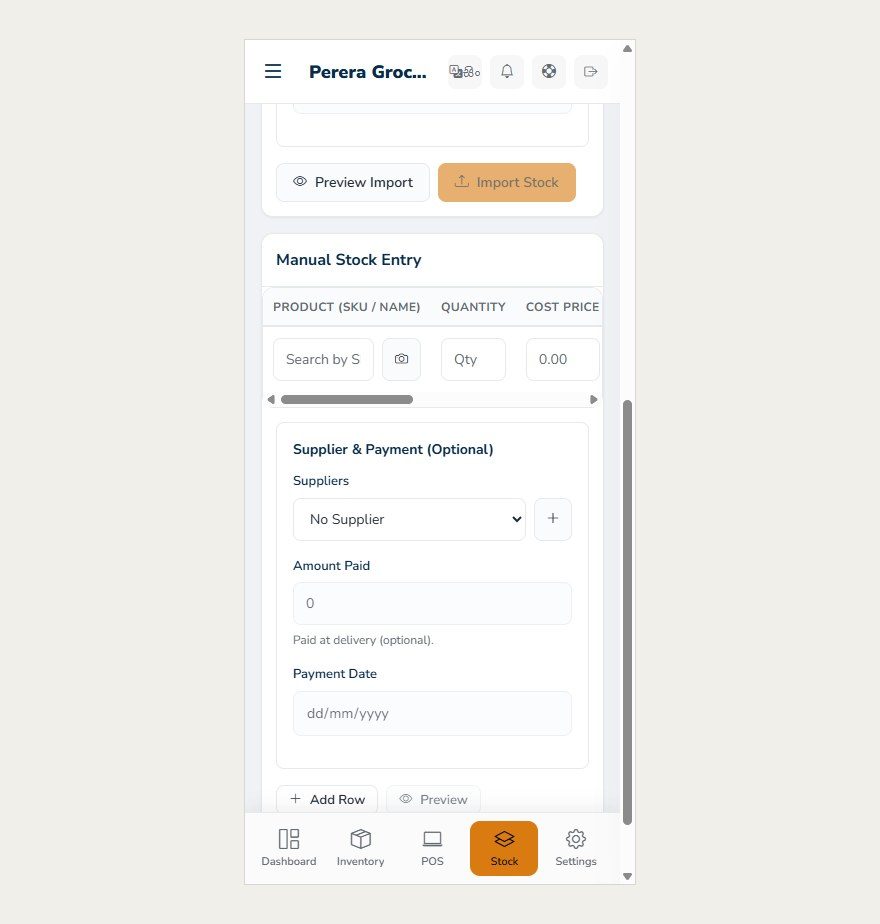
The same page works on a phone. The manual entry table scrolls sideways to show Quantity, Cost Price and the dates, and the camera button scans a barcode.
What next?
Your shelves are recorded. Now make your first sale with ADPOS: the till takes each sale from the oldest batch first, without you doing anything.
Keep reading

How to create your ADPOS account, step by step
All you need is a mobile number, an email address you can open now and a few minutes. Here is every screen, from the sign-up form to your first look at the dashboard.

How to add your first product in ADPOS
Give it a name, a price and the stock you already have on the shelf, and it is ready to sell. One screen, about a minute.

How to make your first sale with ADPOS
Open the till, add the products, take the money and hand over a receipt. Here is your first sale, from counting the drawer to seeing it on the dashboard.