
How to create your ADPOS account, step by step
All you need is a mobile number, an email address you can open now and a few minutes. Here is every screen, from the sign-up form to your first look at the dashboard.

Opening an ADPOS account takes a few minutes, and you do it in the web browser you already use: there is nothing to install and nobody needs to visit your shop. At the end you have your own shop on ADPOS, a free trial already running, and a till you can sell from.
This guide walks through every screen. It is the first of four: once your account is open, add your first product, import your stock, then make your first sale.
Step 1: Open the sign-up page
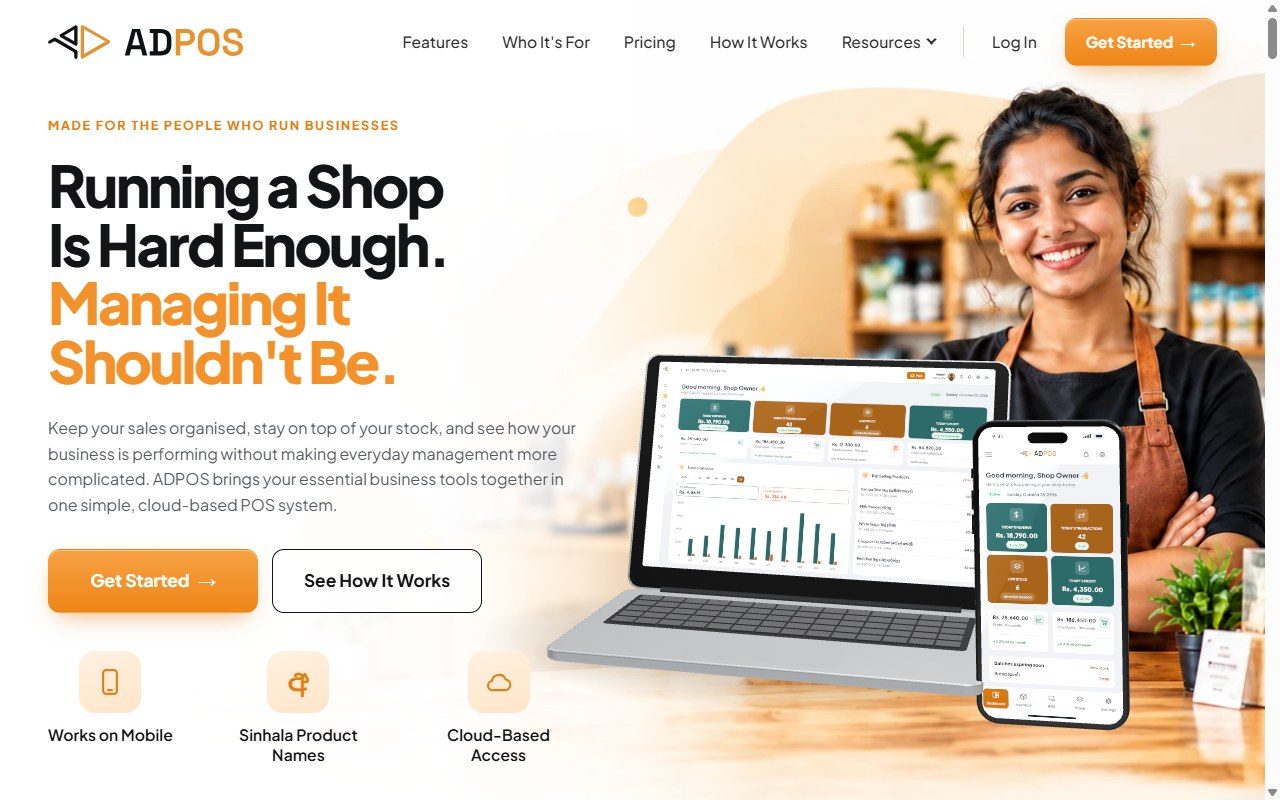
Go to pos.awakendev.com and press Get Started at the top of the page. You can also go straight to the sign-up page.
Step 2: Fill in the form
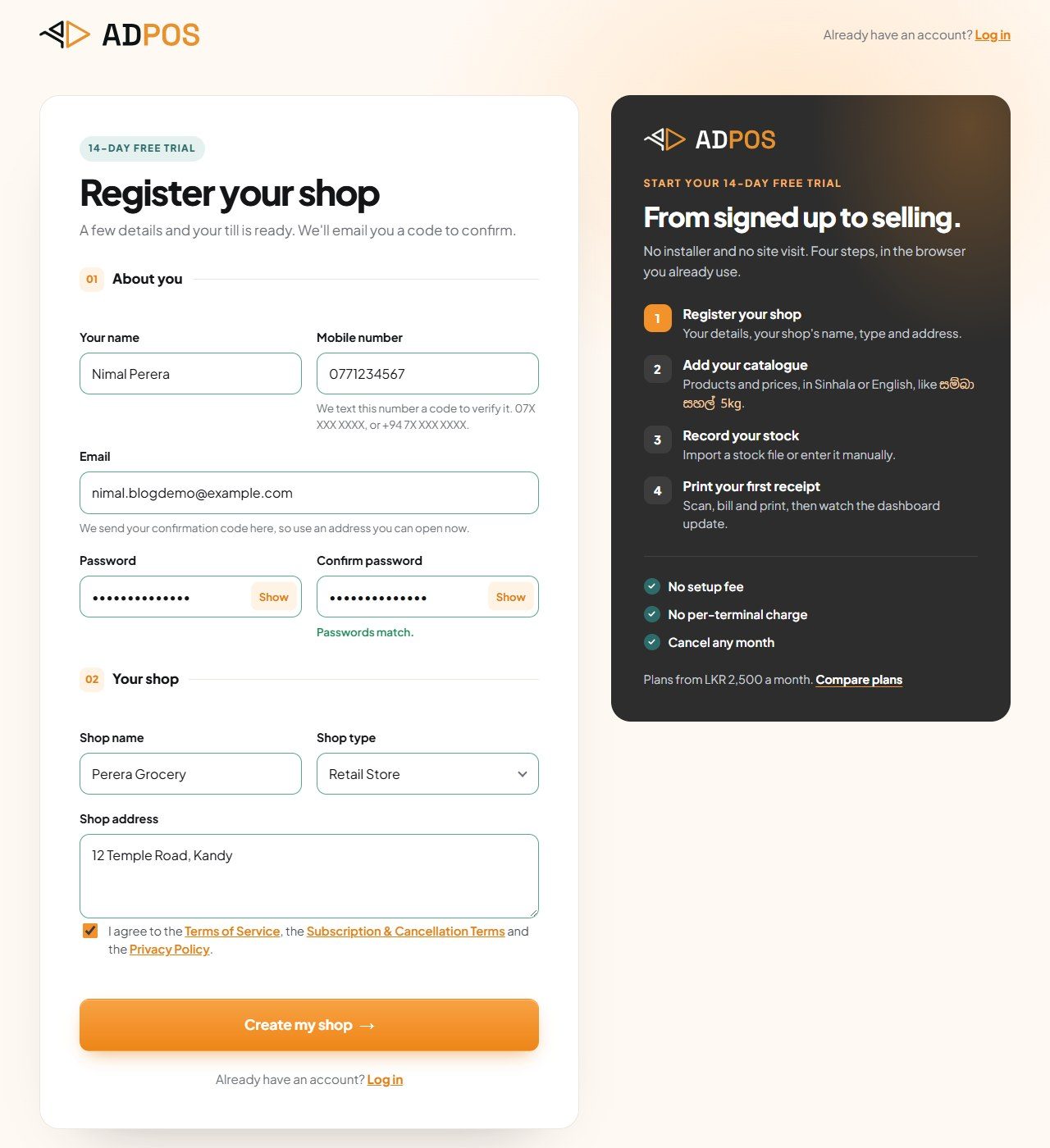
The form has two parts: About you and Your shop.
- Your name: the shop owner’s name.
- Mobile number: a Sri Lankan mobile, written as 07X XXX XXXX or +94 7X XXX XXXX. ADPOS texts a code to it, so use a phone you have with you.
- Email: an address you can open right now. Your confirmation code goes there.
- Password: at least 8 characters, with a capital letter, a small letter and a number. Confirm password tells you when the two match.
- Shop name: the name your customers know. It is printed at the top of your receipts.
- Shop type: pick the closest one. ADPOS uses it to set up a starting list of product categories, which you can change later.
- Shop address: where the shop is.
Tick the box to agree to the Terms of Service, the subscription terms and the Privacy Policy, then press Create my shop.
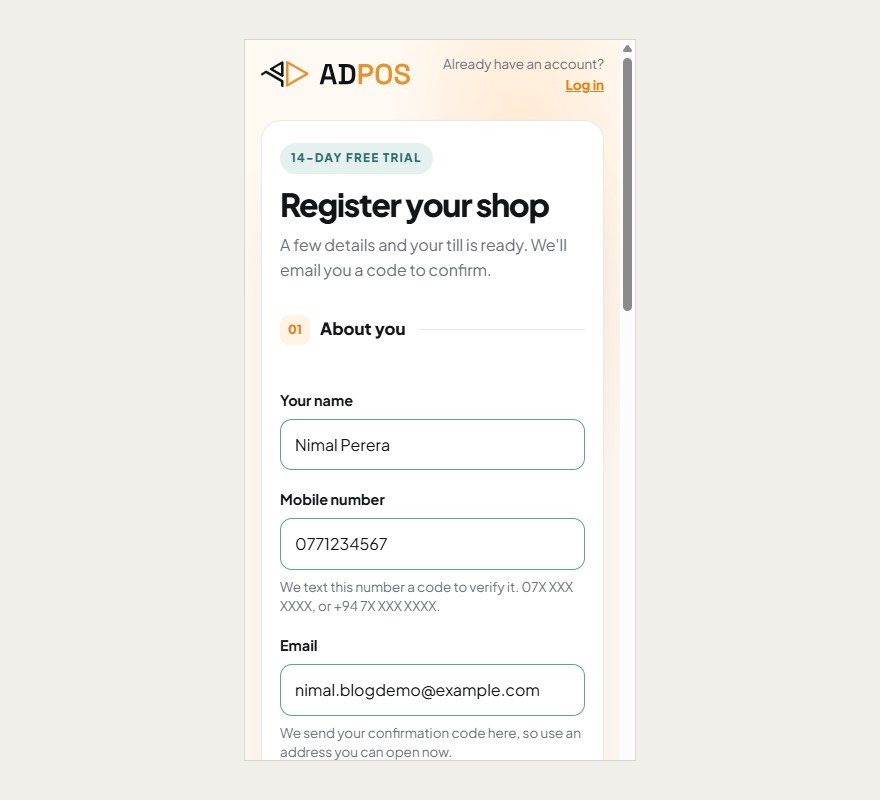
The form works just as well on a phone:
Step 3: Confirm your email
ADPOS emails you a 6-digit code. Type it into the six boxes and press Verify Email & Continue.
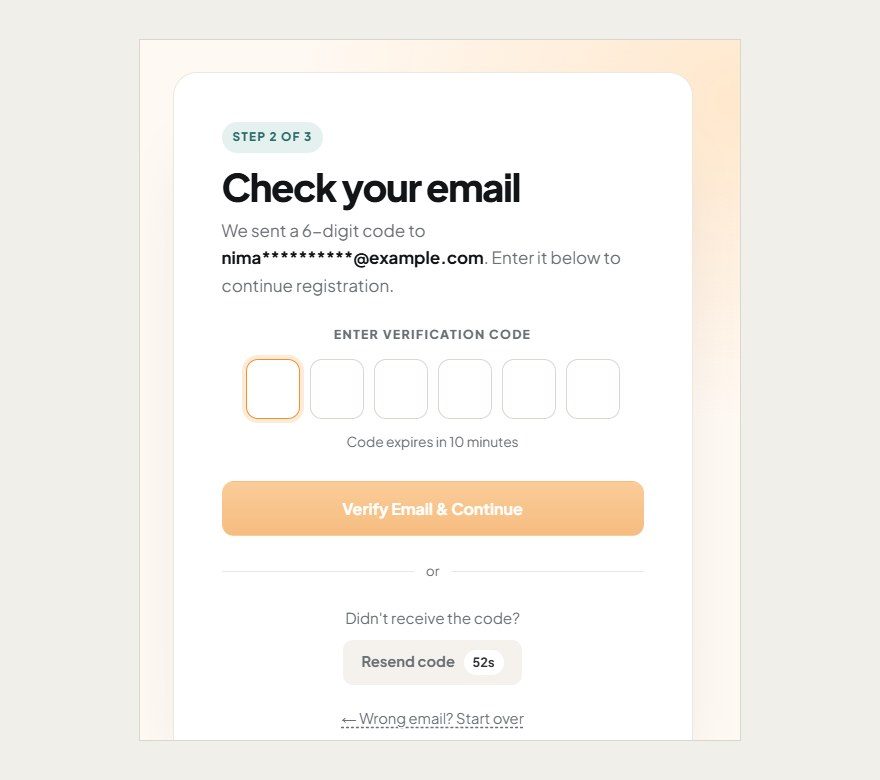
No email? Check your spam or promotions folder. After a short wait the Resend code button sends a new one. If you typed the wrong address, Start over takes you back to the form.
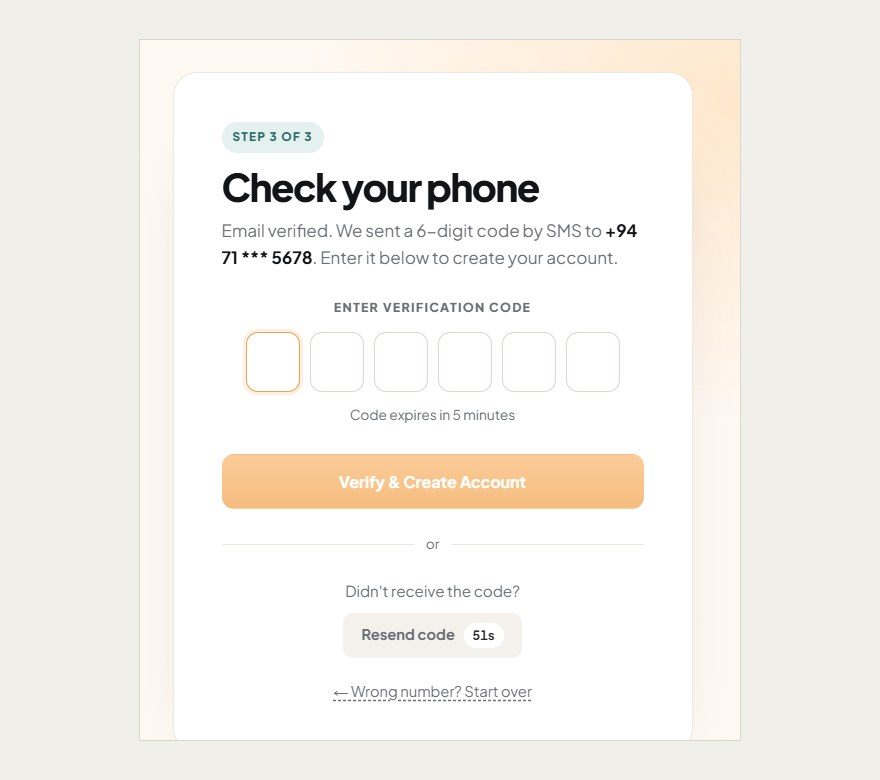
Step 4: Confirm your mobile number
Next, ADPOS sends a code by SMS to the number you gave. Type it in and press Verify & Create Account.
Step 5: Your ADPOS account is ready
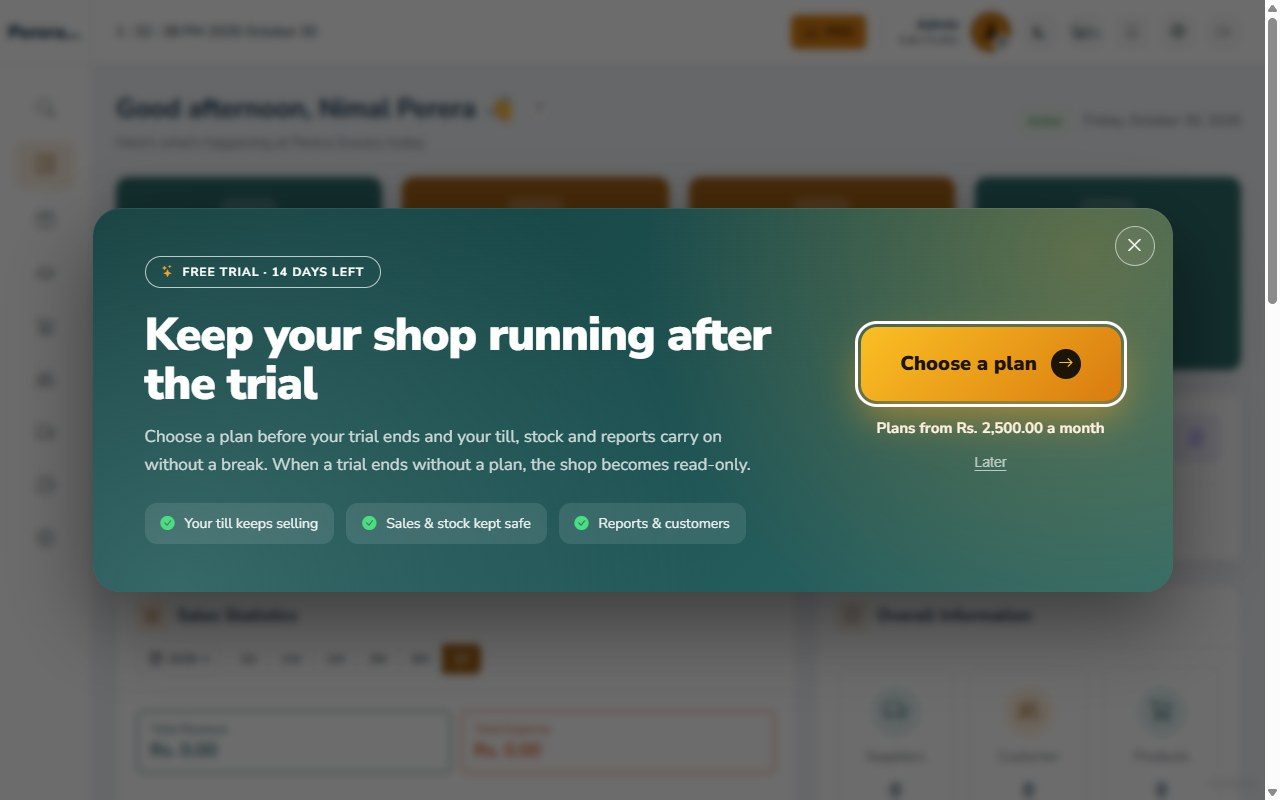
That is it. Your account is open, you are logged in and your free trial has started. The first thing you see is a reminder that the trial is running. Press Choose a plan to look at the plans now, or Later to start using your shop straight away. You can compare the plans at any time on the pricing page.
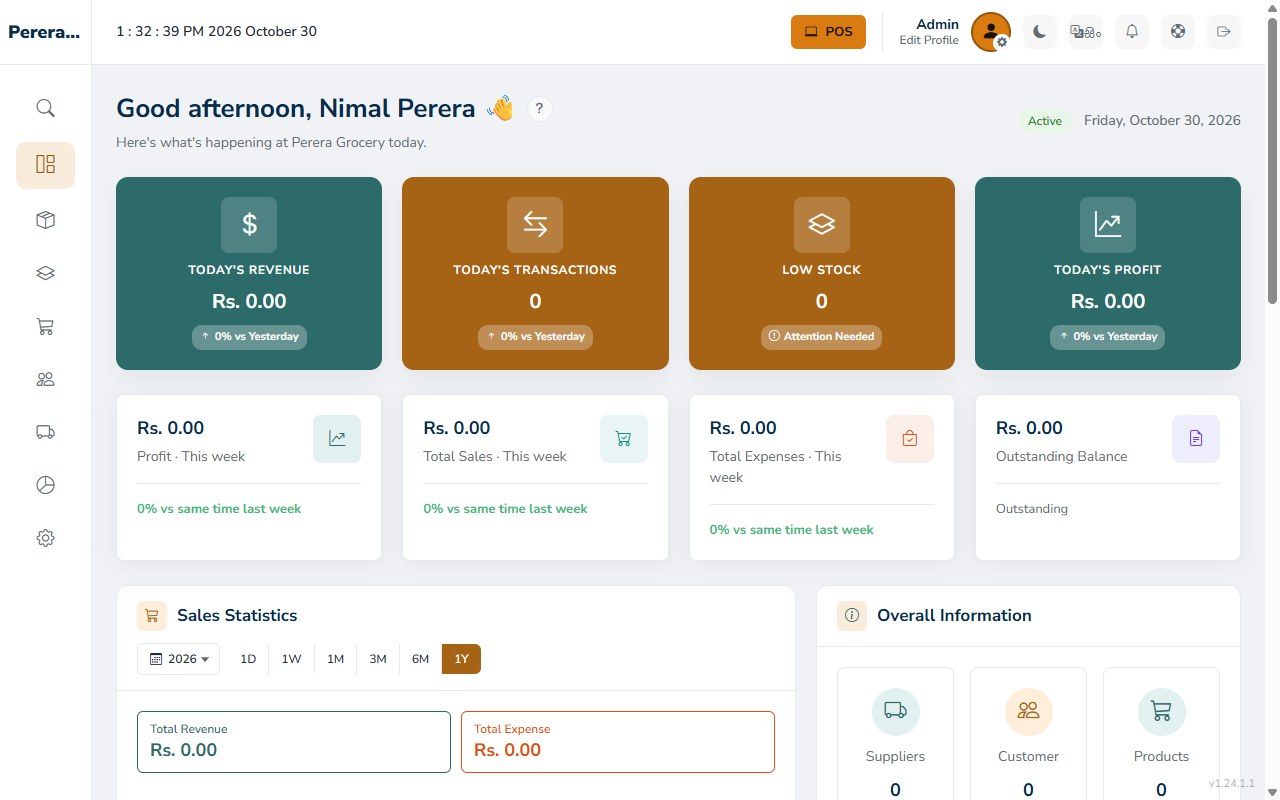
Behind it is your dashboard: today’s sales, transactions, low stock and profit. Everything reads zero for now, and that changes with your first sale.
Logging in next time
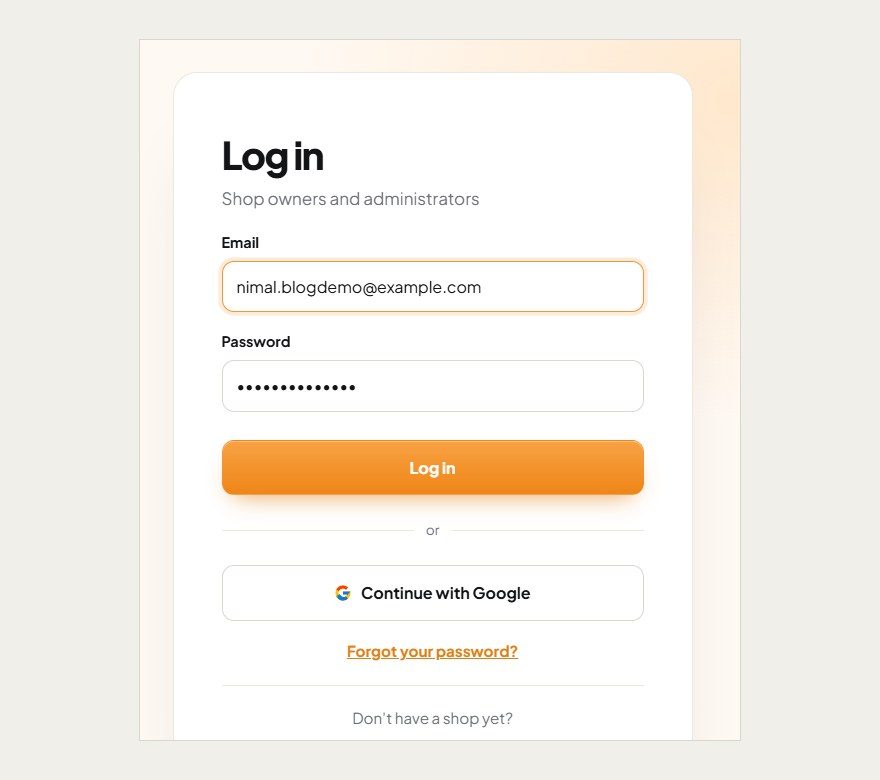
Go to the login page (or press Log In on the home page) and type your email and password. If you forget the password, use Forgot your password? below the button.
If something goes wrong
| What you see | What to do |
|---|---|
| This mobile number is already registered to another shop | Each number can open one shop. If the shop is yours, log in instead. Otherwise use a different mobile number. |
| The code did not arrive | Wait for the Resend code button, then press it. For email, check the spam folder too. |
| The code has expired | Press Resend code and use the newest code. |
| You typed a detail wrongly | Press Start over at the top of the code screen and fill in the form again. |
What next?
Your till needs something to sell. Take the next three steps in order:
Keep reading

How to add your first product in ADPOS
Give it a name, a price and the stock you already have on the shelf, and it is ready to sell. One screen, about a minute.

How to import stock in ADPOS
When a delivery arrives, record it once: type a few lines by hand or upload a spreadsheet. ADPOS adds it to your stock and remembers what you paid and what you still owe.

How to make your first sale with ADPOS
Open the till, add the products, take the money and hand over a receipt. Here is your first sale, from counting the drawer to seeing it on the dashboard.